Knowing your motherboard model is essential for hardware upgrades, driver updates, and troubleshooting compatibility issues. Whether you’re planning to add more RAM, upgrade your CPU, or simply need to find the right drivers, identifying your motherboard accurately saves time and prevents costly mistakes. This comprehensive guide covers eight reliable methods to check your motherboard model in 2026, from software-based solutions to physical inspection techniques, ensuring you can find this critical information regardless of your technical skill level or system condition.
Why You Need to Know Your Motherboard Model
Understanding your motherboard model is crucial for several practical reasons that directly impact your computer’s performance and longevity. When you plan to upgrade components like RAM, you need to know the maximum capacity and compatible memory types your motherboard supports. Similarly, CPU upgrades require knowing the exact socket type, which varies significantly across motherboard models. In 2026, with the proliferation of DDR5 memory and PCIe 5.0 standards, compatibility verification has become more critical than ever.
Driver updates represent another compelling reason to identify your motherboard accurately. Manufacturers regularly release BIOS updates that improve stability, add new CPU support, and patch security vulnerabilities. According to 2026 cybersecurity reports, outdated motherboard firmware accounts for approximately 18% of system vulnerabilities in consumer PCs across the United States. Additionally, knowing your motherboard model helps when troubleshooting hardware issues, as you can access model-specific support documentation, forums, and manufacturer resources that provide targeted solutions for your exact configuration.
Method 1: Check Motherboard Model Using System Information
The System Information utility in Windows provides one of the easiest methods to check your motherboard model without opening your computer case. This built-in tool has been enhanced in Windows 11 and Windows 10 to display comprehensive hardware details, making it the preferred first approach for most users in 2026. The utility accesses information stored in your system’s DMI (Desktop Management Interface) pool, which contains manufacturer-programmed hardware identifiers.
Accessing System Information in Windows 11
To check motherboard model in Windows 11, press the Windows key + R to open the Run dialog, then type ‘msinfo32’ and press Enter. The System Information window will open, displaying your computer’s comprehensive hardware configuration. Look for the ‘System Manufacturer’ and ‘System Model’ fields on the main System Summary page. For motherboard-specific information, note the ‘BaseBoard Manufacturer,’ ‘BaseBoard Product,’ and ‘BaseBoard Version’ entries. In custom-built PCs, these fields typically show your actual motherboard brand like ASUS, MSI, Gigabyte, or ASRock, followed by the specific model number such as ROG STRIX B760-A or MAG B650 TOMAHAWK.
System Information Method Limitations
While the System Information tool works excellently for most systems, it has certain limitations worth noting. Pre-built computers from manufacturers like Dell, HP, or Lenovo often display the system model rather than the specific motherboard model, which can make finding compatible upgrade components challenging. In these cases, you may see something like ‘Dell OptiPlex 7090’ rather than the actual motherboard model number. Additionally, some custom BIOS configurations or older systems may not populate these fields correctly, displaying ‘To Be Filled By O.E.M.’ or similar placeholder text. When System Information doesn’t provide clear motherboard details, you’ll need to use alternative methods like Command Prompt or third-party software to identify your motherboard model accurately.
Method 2: Use Command Prompt to Check Motherboard Model
The Command Prompt method offers a more direct approach to checking your motherboard model, utilizing Windows Management Instrumentation (WMI) commands that query hardware information directly from your system’s firmware. This method works consistently across Windows 10, Windows 11, and even older Windows versions, making it extremely reliable for technical users. In 2026, this remains one of the most accurate software-based methods, particularly for custom-built systems where System Information might show ambiguous results.
Command Prompt Instructions for Motherboard Detection
To check your motherboard using Command Prompt, right-click the Start menu and select ‘Command Prompt’ or ‘Windows Terminal.’ Type the command ‘wmic baseboard get product,manufacturer,version,serialnumber’ and press Enter. This command returns four critical pieces of information: the manufacturer name, the exact product model number, the version or revision number, and the serial number. For example, you might see results like ‘Manufacturer: ASRock, Product: B650M Pro RS, Version: 1.02.’ The version number indicates your motherboard’s revision, which can be important for BIOS updates as different revisions sometimes require specific firmware versions.
Alternative Command Prompt Commands
Several alternative Command Prompt commands can reveal additional motherboard information when the basic command doesn’t provide enough detail. The command ‘systeminfo | findstr /C:”System Manufacturer” /C:”System Model”‘ displays system-level information that can help identify OEM motherboards. For more detailed output, use ‘wmic baseboard list full’ to see every available property of your motherboard, including BIOS version, chipset information, and hardware IDs. Power users in 2026 often prefer ‘powershell Get-CimInstance -ClassName Win32_BaseBoard | Format-List *’ which provides comprehensive motherboard details in a more readable format. These commands work even when Windows GUI tools fail, making them invaluable for troubleshooting systems with display issues or remote server management scenarios.
Method 3: Third-Party Software to Identify Motherboard Model
When Windows built-in tools don’t provide sufficient detail, third-party software solutions offer comprehensive hardware detection capabilities with user-friendly interfaces. These applications go beyond basic motherboard identification, providing detailed specifications including chipset information, BIOS version, supported features, and even real-time monitoring of temperatures and voltages. In 2026, several trusted applications remain industry standards for hardware identification in the United States, used by both professionals and enthusiasts for system diagnostics and upgrade planning.
CPU-Z for Motherboard Identification
CPU-Z remains the gold standard for hardware identification in 2026, offering a free, lightweight solution that accurately identifies motherboard models across all major manufacturers. After downloading from the official CPUID website, launch the application and navigate to the ‘Mainboard’ tab where you’ll find your motherboard manufacturer, model, chipset, and BIOS information clearly displayed. The software also shows your PCIe specifications, memory slot configuration, and interface versions, helping you determine upgrade compatibility. CPU-Z is particularly reliable for detecting OEM motherboards in pre-built systems where other methods might fail, and its database is regularly updated to recognize the latest 2026 motherboard releases including Intel 800-series and AMD 700-series chipsets.
Alternative Hardware Detection Software
Beyond CPU-Z, several other reliable hardware detection tools provide excellent motherboard identification capabilities. HWiNFO64 offers even more comprehensive system information with extensive sensor monitoring, making it ideal for enthusiasts who want detailed technical specifications. Speccy by Piriform provides a more user-friendly interface with temperature monitoring and health status for various components. For users seeking all-in-one solutions, AIDA64 (paid software with trial version) delivers professional-grade system diagnostics including stability testing and benchmarking alongside motherboard identification. In 2026, these applications have evolved to support the latest hardware standards including DDR5 memory detection, PCIe 5.0 slot identification, and USB4 controller recognition, ensuring accurate reporting regardless of your system’s cutting-edge components.
Method 4: Check Physical Motherboard for Model Information
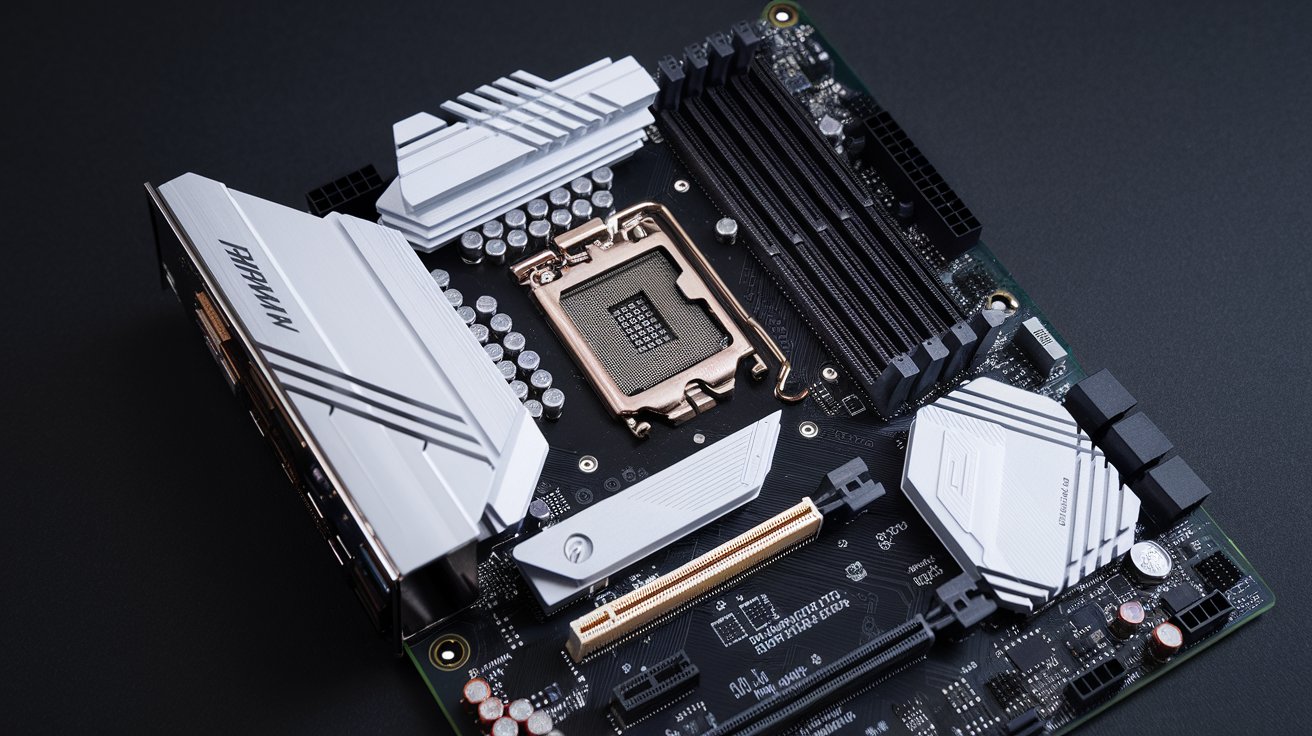
When software methods fail or you need absolute certainty, physically inspecting your motherboard provides the most reliable identification method. This hands-on approach works even when your computer won’t boot or when dealing with systems that haven’t been configured yet. The motherboard model number is typically printed directly on the PCB (printed circuit board) in easily visible locations, though finding it requires opening your computer case and potentially removing components that obstruct the view.
Before opening your case, ensure your computer is completely powered off and unplugged from the wall outlet. Press the power button several times after unplugging to discharge residual electricity. Ground yourself by touching a metal part of the case or using an anti-static wrist strap to prevent electrostatic discharge damage to sensitive components. In 2026, most modern cases feature tool-less designs with thumbscrews or quick-release panels, making access significantly easier than older systems. Once opened, you’ll need adequate lighting—a flashlight or smartphone light works well for illuminating the interior of your case.
Locating the Model Number on Your Motherboard
The motherboard model number is usually printed in large, clear letters somewhere on the board’s surface, most commonly along the edges or between the PCIe slots. Look for text that includes the manufacturer name followed by the model designation, such as ‘ASUS ROG STRIX Z790-E GAMING’ or ‘MSI MPG B650 CARBON WIFI.’ On most boards manufactured after 2020, you’ll find this information near the bottom edge of the motherboard, between the first and second PCIe slots, or near the 24-pin power connector. Some manufacturers also print the model number near the rear I/O panel or on a small sticker attached to the board. If your graphics card blocks the view, you may need to remove it temporarily—remember to unscrew the bracket screws and release the PCIe slot latch before gently pulling the card straight out.
Understanding Motherboard Revision Numbers
In addition to the model name, you’ll often find a revision number printed on the motherboard, typically displayed as ‘Rev 1.0,’ ‘Rev 2.1,’ or similar notation near the model number. This revision identifier is crucial because manufacturers sometimes update motherboard designs to fix issues, add features, or improve compatibility without changing the model name. Different revisions may require different BIOS files, have varying component layouts, or support different CPU generations. In 2026, revision numbers have become increasingly important with AMD’s AM5 platform and Intel’s LGA1700/1800 sockets, where newer revisions often add support for additional CPU models or improved power delivery. When downloading BIOS updates or seeking technical support, always provide both your exact model number and revision number to ensure you receive the correct information and files for your specific hardware configuration.
Method 5: Check Motherboard Documentation and Packaging
If you still have the original motherboard box and documentation, this method provides instant, accurate identification without any software or physical inspection. The retail packaging prominently displays the model number on multiple surfaces, making it impossible to miss. This approach is particularly valuable for users who kept their components’ original packaging, a practice recommended by PC enthusiasts for warranty purposes and future resale value. In 2026, manufacturers include comprehensive quick-start guides, detailed manuals, and warranty cards that all prominently feature the exact model designation.
The product box typically shows the model number on the front, top, and sides, along with key specifications and features. Inside, you’ll find printed documentation including installation guides and a user manual with the model number on every page’s header or footer. Many 2026 motherboards also include a driver disc or USB drive (though most users now download drivers online) with the model printed on the label. Additionally, modern motherboard packaging includes QR codes that link directly to the product’s support page, providing instant access to manuals, drivers, and BIOS updates. If you purchased a pre-built system, the original invoice or packing slip should list the motherboard model, though OEM systems from Dell, HP, or Lenovo typically use proprietary model numbers that differ from retail versions.
Method 6: Review Purchase History and Receipts
Your purchase records serve as a reliable reference for identifying your motherboard model, especially if you bought the component online or have digital receipts. This method works particularly well for custom-built PCs where you selected and purchased individual components. Major retailers like Amazon, Newegg, B&H Photo, and Micro Center maintain detailed order histories that include complete product specifications and model numbers. In 2026, most online retailers provide indefinite access to purchase history through your account dashboard, making it easy to retrieve this information years after the original purchase.
To find your motherboard model in purchase records, log into your account on the retailer’s website where you bought the component and navigate to your order history. Each order typically includes product images, full model names, and SKU numbers that precisely identify what you purchased. Email confirmations sent at the time of purchase also contain this information, so searching your inbox for terms like ‘motherboard,’ ‘order confirmation,’ or the retailer’s name can quickly locate relevant receipts. For pre-built systems, the configuration sheet or invoice should list major components, though custom system integrators like iBUYPOWER, CyberPowerPC, or NZXT BLD provide more detailed component lists than traditional OEMs. If you purchased from a local computer store, paper receipts or electronic invoices often include the motherboard model, particularly if the store specializes in custom PC builds and component sales.
How to Check Motherboard Model Without Turning On Your PC
Determining your motherboard model without powering on your computer is possible through several approaches, particularly useful when dealing with non-functional systems or during the building process. The most straightforward method involves physically opening the case and reading the model number printed directly on the motherboard’s PCB, as described in Method 4. This approach works regardless of whether the system functions, making it ideal for troubleshooting scenarios where the computer won’t boot or has hardware failures preventing normal operation.
Alternative methods for offline motherboard identification include examining the original packaging if available, checking purchase receipts or order history from online retailers, or consulting build documentation if you or someone else assembled the system. For pre-built computers, the system’s service tag or serial number—typically located on a sticker on the case exterior—can be entered on the manufacturer’s website to retrieve complete system specifications including the motherboard model. Dell, HP, and Lenovo all maintain databases that cross-reference service tags with hardware configurations, providing detailed component lists without requiring system access. In 2026, some manufacturers have implemented QR codes on the motherboard itself that can be scanned with a smartphone to access product information, driver downloads, and support resources, though this still requires opening the case to access the code.
Checking Motherboard Model in Device Manager
While Device Manager doesn’t directly display your motherboard model in an obvious location, it can provide indirect clues and supporting information that help identify your system’s mainboard. Access Device Manager by right-clicking the Start button and selecting ‘Device Manager’ from the menu, or by pressing Windows + X and choosing the appropriate option. Once opened, you’ll see a categorized list of all hardware devices installed in your system, organized by component type such as Display adapters, Network adapters, and System devices.
To find motherboard-related information in Device Manager, expand the ‘System devices’ category where you’ll see entries for chipset components, USB controllers, and other motherboard-integrated hardware. The chipset entries—such as ‘Intel B760 Chipset’ or ‘AMD X670 Chipset’—indicate your motherboard’s chipset family, narrowing down the possibilities significantly. However, Device Manager won’t show the specific manufacturer or exact model number like ‘ASUS TUF Gaming B760M-Plus’ or ‘Gigabyte B650 AORUS Elite.’ For complete motherboard identification, you’ll need to combine this chipset information with other methods. In 2026, Device Manager remains more useful for checking driver status, troubleshooting hardware conflicts, and verifying that all motherboard components are functioning correctly rather than as a primary identification tool, though it serves as a good supplementary source when cross-referencing information gathered through other methods.
Identifying Motherboard Model in Linux Systems
Linux users can check motherboard models using several command-line tools that query hardware information directly from the system. The most common and reliable method involves using the ‘dmidecode’ utility, which reads the system’s DMI table to display detailed hardware information. Open a terminal and run ‘sudo dmidecode -t baseboard’ to see motherboard-specific details including manufacturer, product name, version, and serial number. This command requires root privileges, hence the ‘sudo’ prefix, and will prompt for your password before displaying results.
Alternative Linux commands for motherboard identification include ‘sudo lshw -class system’ which provides comprehensive system information including the motherboard model in a hierarchical format, and ‘cat /sys/devices/virtual/dmi/id/board_name’ combined with ‘cat /sys/devices/virtual/dmi/id/board_vendor’ to display the model and manufacturer directly from system files without requiring elevated privileges. For users preferring graphical interfaces, applications like ‘hardinfo’ or ‘lshw-gtk’ provide GUI-based hardware information browsers that display motherboard details alongside other system components. In 2026, Linux hardware detection has matured significantly, with most distributions including these tools by default or making them easily installable through package managers. The ‘inxi -F’ command offers another excellent option, displaying comprehensive system information including motherboard model, BIOS version, and chipset details in a well-formatted, color-coded output that’s particularly popular among Linux enthusiasts and system administrators.
Common Issues When Checking Motherboard Models
Several common problems can arise when attempting to identify your motherboard model, particularly with OEM systems and older computers. Pre-built computers from manufacturers like Dell, HP, or Lenovo often display proprietary system model numbers instead of actual motherboard specifications, making it difficult to find compatible upgrade components or specific drivers. These systems use custom motherboards designed exclusively for that manufacturer, which may not have traditional model names like retail motherboards from ASUS, MSI, or Gigabyte. In such cases, searching for the system model number on the manufacturer’s website usually provides component specifications and compatibility information.
Another frequent issue occurs when software methods return incomplete information or placeholder text like ‘To Be Filled By O.E.M.’ or ‘System Manufacturer.’ This typically happens with custom-built systems where the BIOS wasn’t properly configured, older systems with outdated firmware, or certain Asian-market motherboards that don’t fully populate DMI data. When encountering this problem, physical inspection becomes necessary to read the model number directly from the board. Additionally, some motherboard manufacturers use different naming conventions for identical products sold in different markets—a motherboard sold as ‘ASUS Prime B760-Plus’ in the United States might have a slightly different designation in Asian or European markets. In 2026, manufacturers have generally standardized naming globally, but variations still exist, particularly with region-specific features like WiFi bands or bundled accessories that result in model number suffixes like ‘-D4,’ ‘-WiFi,’ or regional identifiers.
Related video about how to check motherboard model
This video complements the article information with a practical visual demonstration.
Everything you need to know about how to check motherboard model
How do I check my motherboard model in Windows 11?
To check your motherboard model in Windows 11, press Windows + R, type ‘msinfo32,’ and press Enter to open System Information. Look for ‘BaseBoard Manufacturer’ and ‘BaseBoard Product’ entries which display your motherboard brand and model. Alternatively, open Command Prompt or Windows Terminal and type ‘wmic baseboard get product,manufacturer,version’ for instant results. This method works on all Windows 11 versions updated through 2026 and provides accurate information for both custom-built PCs and pre-built systems, though OEM computers may show system model numbers rather than specific motherboard designations.
Can I check my motherboard model without opening my computer?
Yes, you can check your motherboard model without opening your computer using several software methods. The easiest approach is using System Information (msinfo32) or Command Prompt with the ‘wmic baseboard get product,manufacturer’ command in Windows. Third-party applications like CPU-Z, HWiNFO, or Speccy also identify your motherboard without requiring physical access. These software solutions work by reading hardware information stored in your system’s firmware and are accurate for most computers. However, if software methods show incomplete information or your system won’t boot, physical inspection becomes necessary to read the model number printed on the motherboard itself.
Why does Device Manager not show my motherboard model?
Device Manager doesn’t directly display motherboard models because it’s designed to manage individual hardware devices and drivers rather than identify system components. While Device Manager shows chipset information under ‘System devices’—such as Intel B760 or AMD X670 chipsets—it won’t reveal the specific motherboard manufacturer or model like ‘ASUS TUF Gaming’ or ‘MSI MAG B650.’ To find your exact motherboard model, use System Information, Command Prompt commands, or third-party software like CPU-Z instead. Device Manager remains useful for checking driver status and troubleshooting hardware conflicts, but System Information and wmic commands are the proper Windows tools for motherboard identification purposes.
What information do I need from my motherboard for upgrades?
For hardware upgrades, you need several key motherboard specifications beyond just the model number. Essential information includes your chipset type (determines CPU compatibility), RAM type and maximum capacity (DDR4 or DDR5, and how many GB supported), number and type of expansion slots (PCIe versions for graphics cards), storage interfaces (M.2 slots and SATA ports), and CPU socket type (LGA1700, AM5, etc.). You also need to know your BIOS version for firmware updates and the motherboard’s power delivery capabilities for CPU upgrades. In 2026, additional factors include PCIe 5.0 support for newest graphics cards and NVMe drives, USB4 availability, and WiFi 7 compatibility. Tools like CPU-Z or your motherboard’s manual provide all these specifications once you’ve identified the exact model.
How do I find my motherboard model on a pre-built Dell or HP computer?
Pre-built Dell or HP computers typically don’t display standard retail motherboard model numbers through Windows tools. Instead, find your system’s service tag (a 7-character code on a sticker on the case) and enter it on the manufacturer’s support website. Dell users can visit dell.com/support and enter the service tag to see complete system specifications including motherboard details. HP users should visit hp.com/support and use the serial number or product number. These manufacturer databases provide accurate component information, BIOS updates, and driver downloads specific to your system. Alternatively, Command Prompt commands may show proprietary motherboard designations, but the service tag method ensures you get correct, OEM-specific information for upgrades and troubleshooting in these pre-built systems.
Is the motherboard model the same as the computer model?
No, the motherboard model and computer model are different things, though they’re often confused. The computer or system model refers to the pre-built PC’s designation from manufacturers like Dell OptiPlex 7090 or HP EliteDesk 800 G9, while the motherboard model is the specific mainboard inside, such as ASUS Prime B660M-A or Gigabyte B550 AORUS Elite. In custom-built PCs, there’s no ‘computer model’—only individual component models including the motherboard. For pre-built systems, System Information shows the system model in the ‘System Model’ field, while motherboard details appear under ‘BaseBoard Product.’ This distinction matters because searching for drivers or upgrade compatibility requires the actual motherboard model, not just the system model, particularly for custom PCs or when seeking BIOS updates and technical specifications.
| Method | Difficulty Level | Best For | Accuracy |
|---|---|---|---|
| System Information (msinfo32) | Very Easy | Quick checks on working systems | High (95%) |
| Command Prompt (wmic) | Easy | Technical users, remote systems | Very High (98%) |
| Third-Party Software (CPU-Z) | Very Easy | Detailed specifications, OEM systems | Very High (99%) |
| Physical Inspection | Moderate | Non-booting systems, absolute certainty | Perfect (100%) |
| Original Packaging | Very Easy | Recent purchases, organized users | Perfect (100%) |
| Purchase Records | Easy | Online purchases, warranty verification | Perfect (100%) |
| Device Manager | Easy | Chipset identification only | Low (40%) |
| Linux Commands (dmidecode) | Moderate | Linux systems, server environments | Very High (97%) |